Showing posts with label Pc Tricks. Show all posts

Thursday, 19 May 2016

How To Stop Pop Up Ads In Google Chrome

Below we list a number of detailed ways to stop pop-ups, including running malware scans and creating an exception list. However, blocking in Chrome browser involves just four basic actions. Select Settings from the Chrome menu. Click the Advanced Settings click. Click the Content Settings button. Toggle the Pop-ups option to "do not allow" or select exceptions.

  • Select Settings from the Chrome menu. 
  • Click the Advanced Settings click. 
  • Click the Content Settings button. 
  • Toggle the Pop-ups option to "do not allow" or select exceptions

Enable Chrome's Pop-Up Blocking Feature

1. Click on the Chrome menu icon in the upper-right corner of the browser, and then click on Settings.
chromesettings 257x400
2. Click on the Show Advanced Settings link at the bottom.
chromeadvanced 372x400
 Scroll down to the Privacy header and click on the big Content Settings button.
chromecontent 670x152
4. Scroll down a little bit more in the window that appears until you see the Pop-ups section. The option “Do not allow any site to show pop-ups” should be selected; if it isn’t select it. Click Done. 
chrome1

Check Your Approved List of Sites

1. Follow steps 1 to 3 above. 
2. Scroll down to Pop-Ups and click on the large “Manage exceptions” button.
chrome1
3. If there are any entries in the ensuing window, move your mouse to the far right of each row until an X appears. Click that X. Click Done. 

Scan for Malware

1. Google search to find and install an antivirus program such as Malwarebytes Anti-Malware, because it's possible that the pop-ups aren’t coming from websites you visit. They may be originating from annoying software that’s causing a bit of trouble on your system. Download it, install it.
2. Run a full scan of your system – preferably in Safe Mode, if you can. If you don’t find anything, try another app or two just to be sure: Avast is another good option.
chrome4

Tuesday, 17 May 2016

How to Remove Advertisements On Bluestacks Forever

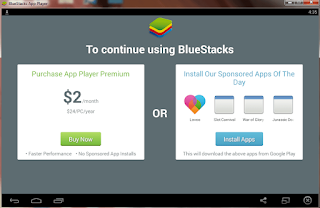
Even after those sponsored ads, if you still like Bluestacks and want to continue using it without facing those sponsored ads popup (either pay $2/month or install their sponsored apps), here’s one of the simplest way to remove ads from Bluestacks:


Remove Bluestacks Advertisements

A Simple Tweak to Remove Sponsored Ads from Bluestacks Forever

Steps to Remove Sponsored Ads from Bluestacks:


  • Download and Install Open Root Explorer in Bluestacks.
  • Navigate to Open Root Explorer in Bluestacks -> Data -> Downloads.
  • Find a file named S2P.apk and delete it.
  • Just make sure you first copy and save this S2P.apk file somewhere on your PC (you can do this directly from Open Root Explorer).


Follow these steps to remove ads if you’ve a Bluestacks version older than v0.9.24:


  • Start Open Root Explorer -> System -> App.
  • Delete S2P.apk.


What does removing the S2P.apk do?

S2P.apk is a synchronizing service with automatically syncs to the Bluestacks servers that contains your account information, whether you’ve paid for using Bluestacks or not, etc. so, deleting this app will stop syncing to the Bluestacks servers and as a result, you’ll never receive those sponsored ad popups forever.

Tuesday, 19 April 2016

How To Root Bluestacks 2 Safely

In this guide, you will learn How to safelyRoot Bluestacks 2 Android emulator.Here I will be using a One-Click-Universal root tool called Kingroot.The process is very simple, easy and Safe.Just follow the step by step guide given below to Root Bluestacks 2 EmulatorBluestack is an Android Emulator.

Using this, you can easily run Full Android OS on Any computer.Bluestack V2 is now available and it is far better than the previous version.It runs much smoother now.So if you are using Bluestack 2 Emulator and want to root it then you are in the right place.

REQUIREMENTS

This method is only for Bluestack 2 Emulator, So don’t try on other Emulators

This is originally posted On Xda.The Official Xda Post–>>http://forum.xda-developers.com/general/general/root-bluestacks-2-t3267943

How To Root Bluestacks 2


*.Download the KingRoot apk from the download section above and install it

*.Now Go to the app drawer and Open Kingroot app. (you have installed in previous steps)

*.Kingroot application will start in few seconds

*.Then click on the Root button to start the root process.

*.Just Wait for a few minutes you will be able to see the Green-Tick inthe center of KingRoot screen, which means that your Emulator is rooted successfully.

*.Once Done,  reboot your smartphone

*.Install Root Checker from Google Play Store and confirm the root privileges in your Emulator


If you have any question related to this post leave that in the comment below.Thanks..:)

Monday, 18 April 2016

How To Download Hotstar Videos Directly In Pc / Laptop Windows 7/8/8.1/10

To download videos from hotstar you need to download a specific program which I mentioned earlier. which you can find at the end of article.

How to Download Videos from Hotstar


1) Download, Extract and open the Hotstar Video Downloader Folder
Now Open Hotstar.com


3) Select a Video to download


4) Copy the link of the video


5) Now Open Hotstar Video Downloader Folder and in that folder you can find a 2 batch files


6) Open hotstarlivestreamer.bat file


7) CMD will Start

8) Its asks you to paste the link of the video that you want to download from hotstar


9) Now Paste the hotstar video link that you want to download


10) Select the stream that you want to download (stream= size and effectiveness of the file) choose from the available streams like 720p, 360p, 404p.


11) Here i selected 720p and right after  it asks for play or dowload
p=play
d=download , type "d" 
and press enter key


12) That’s it download will start automatically


Backdrop if this program is you cannot pause the download and can not use anyexternal download agents or means to download videos from hotstar

Note For Better Performance:

1) Do not change the name of the folder or the  .bat files
2) For better performance paste the folder on Desktop

Thursday, 7 April 2016

How to Use Keylogger to Monitor Your Computer

Use keylogger

Here is a detailed tutorial which contains every possible information that you need to know about using a keylogger to monitor the activities of a computer. I know most of you are new to the concept of keylogger program. For some of you, this might be the first time you’ve heard about the term “keylogger”. So, to give you a clear picture and make you understand better, I would like to take up this post in the form of FAQs (Frequently Asked Questions). Here we go:
NOTE: I highly recommend that you read this post completely as every single piece of information is important.

1. What is a Keylogger?

A keylogger (also called as spy software) is a small program that monitors each and every keystroke a user types on a specific computer’s keyboard. A keylogger program can be installed in just a few seconds and once installed, you are only a step away from getting the target password and other sensitive data.

2. How Keylogger works?

Once the keylogger is installed on a PC, it starts operating in the background (stealth mode) and captures every keystroke of the target computer.
Let’s take up a small example: The user on the target computer goes tohttp://mail.yahoo.com and types his “username” and the “password” in the respective fields to login. The keylogger silently records these keystrokes and stores them in the logs. These logs when opened up shows the captured “username” and “password“. Along with this, you will also be shown that they were typed in the Yahoo login page. Thus, the keylogger loads upon every startup, runs in the background and captures each and every keystroke.

3. How to install the keylogger?

A keylogger can be installed just like any other program. Just follow the screen instructions and you’re done.

4. Do I need any special knowledge to install and use the keylogger?

Absolutely NOT! Anyone with a basic computer knowledge can install and use the keylogger. It requires no special skills.

5. Once I install the keylogger, can the target user come to know about its presence?

No. The target user will never come to know about the presence of the keylogger on his/her computer. This is because, once installed, the keylogger will run in total stealth mode. Unlike other programs, it will never show up in the start-menu, windows startup, program files, add/remove programs or the task manager. So, the victim can no way identify its presence on his/her PC.

6. Can I be traced back if I install the keylogger on some other computer?

No, it’s almost impossible to trace back to you for installing the keylogger on other’s PC.

7. Which keylogger is the best?

Today, there exists hundreds of keyloggers on the market and most of them are no more than a scam. So, I have personally tested some of the top keyloggers and conclude Realtime-Spy as the best one:
Realtime-Spy – Windows Edition (XP/Vista/7/8)
Realtime-Spy – Mac Edition

8. How Realtime-Spy works?

I will try to explain the working of Realtime-Spy in simple steps:
  1. After you purchase Realtime-Spy, you’ll be able to create the installation module using an easy set-up program. You need to email this module to the remote user as an attachment.
  2. When the remote user runs the module it’ll get installed silently and monitoring process will begin. The keystrokes are captured and uploaded to the Realtime-Spy servers continuously.
  3. You can login to your Realtime-Spy account (you get this after purchase) to see the logs which contains the password.

9. I don’t have physical access to the target computer. Can I still use Realtime-Spy?

Yes you can! Realtime-Spy supports REMOTE INSTALLATION feature which allows you to remotely install the program on any PC even if you have no physical access to it. For remote installation, all you need to do is just place the module (refer FAQ-8) in a .zip/.rar file and send it as an attachment to the target email address (for which you need the password).

10. Can I install Realtime-Spy on a local computer?

If you need to install to your local (current) computer instead of your remote computer, then the process is simple. Simply navigate to the folder in which you saved your module ( Refer FAQ-8). Double-click the module filename to execute it. Nothing will appear on the screen but the software gets installed silently.

11. What if the antivirus prevent from sending it as an email attachment?

Instead of sending the keylogger as an email attachment, it is recommended that you place the file in .ZIP/.RAR format and upload it to www.myflare.com. After uploading, just send the direct download link (MyFlare allows hot-linking) to the target via email. Once he downloads the file from this link and run it, the keylogger will get installed automatically.

12. Why Realtime-Spy is the best?

  • Supports REMOTE INSTALLATION feature. This feature is not present on most of the keylogger programs.
  • Fully compatible with Windows 2000/XP/Vista/7/8 and also Mac.
  • Realtime-Spy can bypass any Firewall.
  • Realtime-Spy is more reliable than any other keylogger program. You need not rely on your email account to receive the logs. Instead, you can just log in to your online Realtime-Spy account to receive the logs.
  • Realtime-Spy captures full-size screenshots of the activities on the target PC.
  • Records BOTH sides of chats / IMs in Google Talk, Yahoo IM, Windows Live and more.
  • Realtime-Spy is more easy to install and requires no extra knowledge.
  • Realtime-Spy is recognized by BBC, CNN, CBS and other news networks. Hence, it is reputed and trustworthy.

13. How safe is to use Realtime-Spy?

Realtime-Spy is completely safe to use since all the customer databases remain confidential and private. Realtime-Spy does not collect any information from your system other than the information required for the product’s successful operation. They will not contact you in any way unless you request assistance.

14. Is my online order Safe and Secure?

Absolutely Yes! All the e-commerce transactions for Realtime-Spy is handled by Cleverbridge – they are a trusted online retailer specializing in digitally delivered products. All your information remains private and secure. The safety and protection of your personal information is 100% guaranteed. So, you can place your order for Realtime-Spy with no worries of scam!
Realtime-Spy is completely reliable, safe and the best keylogger out there. It is really worth the price that you pay for it. I promise that you cannot get a better keylogger than this. So, what are you waiting for? Go grab Realtime-Spy now and expose the truth!
Download Realtime-Spy – for Windows
Download Realtime-Spy – for Mac

How to Set Up a VPN in Windows 10 with Screenshort

Let’s get started!
  1. Click the Windows 10 “Start Button” and select Settings
  2. Click the Network & Internet entry.
  3. From the column on the left side of the screen, select VPN
  4. On the right side of the screen, click Add a VPN connection
  5. Now it’s time to configure your VPN. Start out by selecting Windows (built-in) from theVPN provider pull-down menu. Then enter a name in the Connection name field. It doesn’t matter what you call it, but something descriptive is always best. Next, enter your VPN server address in the Server name or address field. Click on the VPN type pull-down menu…
  6. and select your type of VPN connection. For the sake of this tutorial we’re going to use Point to Point Tunneling Protocol (PPTP), but the steps for Layer 2 Tunneling Protocol with IPSec (L2TP/IPSec) are very similar, and you should have no trouble following along.
  7. For the Type of sign-in info select User name and password. The User name andPassword fields are actually optional. This means each time you connect to your VPN service, you’ll be prompted to enter your username and password instead of having that information saved. Similarly to how you have your home WiFi set up, your probably don’t have to enter your password every time you connect to it. One “meet in the middle” solution for your VPN is to enter your user name, but not password. That way you’ll always be prompted for your password, but not your user name (which can often be a series of random numbers and letters). There is no “wrong” decision, it’s a matter of just how secure you want your overall system to be.
  8. When you’ve entered all of the info (or left blank in the case of the optional fields), click theSave button.
  9. Now you’ll see your newly created VPN connection listed in the VPN section. Click it.
  10. Time to test the new connection! Click the Connect button.
  11. If you opted not have to have Windows remember your user and/or pass, you’ll be prompted to enter them. After a few moments, the status will change to Connected.
  12. To quickly monitor your VPN connection status, click on the Networking icon in your Windows System Tray.
  13. At the top of the menu, you’ll see your VPN connection status listed with your Internet connection status. You can also disconnect to your VPN from here, just click on the entry…
  14. and you’ll be taken right back to the VPN section. Click the Disconnect button when you don’t want to use your VPN.
  15. That’s it!

Tuesday, 5 April 2016

Downloading Torrents Using Internet Download Manager

Downloading Torrent Using Internet Download Manager
Hello friends, today i will show you the way to download torrents with Internet Download Manager. Torrent is tiny file with .torrent extension which allows you to download huge amount of data. We use torrents to download various stuffs like movies, games, software package and plenty of different things. you'll transfer torrents from several website.  The transfer speed for torrents depends on seeds it has. It will make difficult for you to download files with very low or no seed counts. However with the assistance of this trick you'll be able to download torrent file with IDM. This tool can be really helpfull when you want to download file that has very low seeds. IDM is the quickest file transfer manager on the internet market. So lets begin!

How To Transfer Torrent With IDM

1. First download the torrent file with .torrent extension which you wish to download from the internet directly without any torrent client like utorrent.
Downloading Torrent Using Internet Download Manager

2. Now open zbigz.com and you will land on its homepage.
3. Then Click on upload Torrent and browse your torrent to transfer and click on Go.
4. Then it will ask you for Free or Premium service, choose Free to proceed further.
5. It will take some time to cache your file. Once the caching is done, click on transfer button to download your file as shown below.
Downloading Torrent Using Internet Download Manager
6. You should have internet download manager installed on your computer so that download start inside IDM. If you don't have IDM don't worry it will download directly.

Note: If you decide on to use Free transfer then you wont be able to transfer file of more then 1 GB 

Thursday, 24 March 2016

Download YouTube Videos Directly In Pc With Using VLC Media Player

How To Download YouTube Videos Using VLC Media Player –

1. Copy The YouTube Video URL
2. Open VLC Media Player Click Media  -> Open Network Stream (Ctrl+N)
3. Paste in the YouTube URL
4. Click On Play Button
5. Video will start playing, Click on Tools -> Codec Information
6.  Copy the Location URL
7. Open Firefox or Google chrome Paste in the Location  URL
in to the web browser URL address bar or press enter
8. Video will load and start playing stop the video from playing
9. Right Click on the video as Save
Save the video on computer and it will start Downloading……………….

Saturday, 5 March 2016

Make Any Video As Your Desktop Wallpaper

This trick works on  Windows Xp as well as it works on windows 7. Go through below post to learn this simple trick.

How to set video as desktop wallpaper ?


  • Open VLC Media Player. If you don't have it download it frome Here.
  • Then Go to Tools > Preference Or press CTRL + P and Selecet Video from left panel
  • Then Choose DirectX video output from output dropdown list
  • as shown in below image .

Video wallpaper

   4. Save the changes ans restart VLC Media Player.
   5. Play any video you would like to set as your desktop wallpaper.
   6. Then click on Video and select DirectX Wallpaper from the dropdown list as show in below image.

Video wallpaper


   7. Now Minimize vlc player and you will see your video running on your desktop as wallpaper.
   8. If you want your default wallpaper back then uncheck DirectX Wallpaper from video dropdown list.
   9. Hope you like this simple trick..

Protect your USB Drive with Password without Software

Windows 7 includes a program called BitLocker for encrypting any drive in 2-3 simple steps. Just follow the steps below… and you can secure you files inside USB flash drive but setting a password and encrypting data contents.

Use Bitlocker in Windows 7 to Protect USB Drives

So guys just check all the steps below on how it works and what all you have to do to step in a more secure sharing world.
  • Insert your USB drive, or any portable hard drive and Right click on it in explorer. Now choose “Turn on Bitlocker…
turn on bitlocker usb drive
  • A small window will appear and prompt you for choosing a password that will be required while opening it later. Proceed by clicking the "Next".
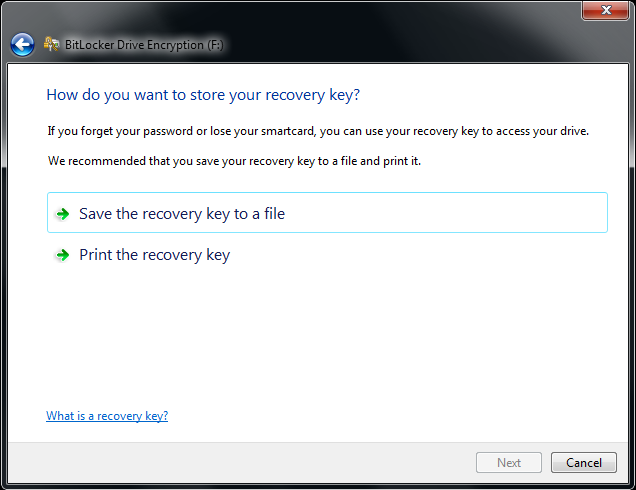
  • Bitlocker will create and save a recovery key in your PC in case you forget password. Simply choose the first option to save the recovery key in a text file in a secure place.

bitlocker recovery key
  • Wait for few minutes while it will be encrypting the portable drive slowly.Depends upon the data volume in your removable drive.

bitlocker encrypting the USB Drive
  • Once done, plug-off and insert the USB drive again to see the encryption in action. BitLocker encryption will be automatically run up and prompt you for putting the password. You have to put the password for only once for accessing the data in it until you plug off. 

bitlocker drive protected
The encryption is absolutely machine independent i.e. whenever you will insert the USB drive to any other computer, it will still prompt for the decryption password. Very useful for locking USB drives with password and encrypting it to keep it secure.